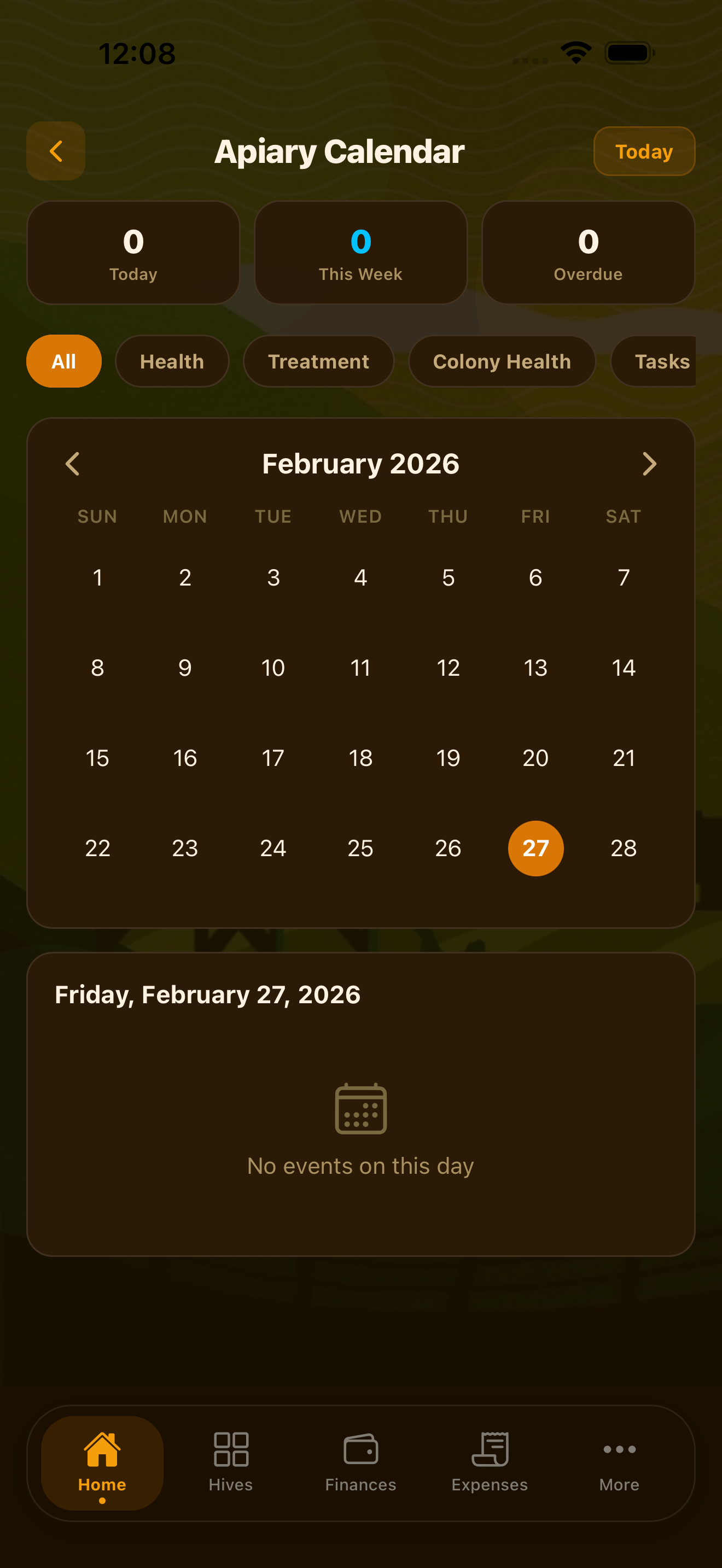
Calendar View
Tap Schedule in the tab bar to open the calendar. By default, you'll see a weekly view with jobs displayed as color-coded blocks.
Calendar view modes
- Day view — shows all jobs for a single day in chronological order with time blocks. Best for busy days.
- Week view — shows the current week at a glance. Tap any day column to jump to day view.
- Month view — shows job counts per day with colored dots indicating statuses. Good for planning ahead.
- List view — shows jobs as a flat list, sorted by date. Useful for searching or bulk-editing.
Swipe left or right to move between days, weeks, or months depending on which view mode you're in. Tap Today in the top-left corner to jump back to the current date.
Creating Jobs
You can create a job from three places: the calendar, a client profile, or the + button in the tab bar.
Tap + New Job or tap and hold on a time slot in day view to create a job at that time.
Search for and select the client. Then choose the property from their profile (most clients have one).
Select the service type — mowing, trimming, fertilizing, cleanup, or a custom service. You can select multiple services for the same visit.
Set the date and time. The duration is estimated automatically based on lot size, but you can override it.
Set a price for the job. You can price each service line separately or enter a flat job total.
Add internal notes (not visible to clients) and tap Save Job.
Job color coding
Jobs on the calendar are color-coded by service type so you can read your day at a glance. Mowing is green, fertilizing is yellow, cleanup is orange, and so on. Colors are customizable in Settings.
Recurring Services
When creating or editing a job, toggle Recurring to set up a repeating series. The job you're editing becomes the first occurrence.
Recurrence options
- Weekly — same day every week. Most common for mowing clients.
- Every 2 weeks — alternating weeks. Good for bi-weekly mowing.
- Every 3 weeks — common in spring and fall when growth slows.
- Monthly — good for fertilizing, aeration, or seasonal services.
- Custom — set any interval in days.
When you edit a recurring job, LawnBook™ asks whether you want to change this job only, this and all future jobs, or all jobs in the series. This prevents accidental changes from affecting your whole season.
Job Statuses
Every job moves through a lifecycle as work is completed and payment is collected. LawnBook tracks this automatically as you take action.
The job is on the calendar for a future date, or today but not yet started. Default state when you create a job.
You've tapped Start Job or clocked in. The clock is running and the job appears at the top of your active list.
You've tapped Complete Job. Time is recorded, and the job is ready to be invoiced. LawnBook prompts you to create an invoice.
An invoice has been created and sent for this job. The job is linked to the invoice and payment tracking begins.
You can also manually set a job to Cancelled or Skipped. Cancelled jobs are removed from route calculations. Skipped jobs (client away, weather) are logged but don't count as missed.
Copy a week & off-season pause
Copy a week's schedule
When next week looks like this week, copy it instead of building it again.
On the Schedule tab, tap the copy button (two overlapping pages) at the top of the screen.
In Copy Schedule, pick the week under Copy from and the week under Copy to.
Tap Copy Schedule, check the summary and confirm. LawnBook creates new jobs on the same weekdays with the same clients, services and times. Jobs already in the target week are left alone.
Pause recurring jobs for the off-season
Recurring jobs can skip the months you don't work. Open Recurring Jobs (the repeat button at the top of the Schedule tab), edit or create a recurring job and switch on Off-Season Pause. Enter Pause From and Resume On as month and day (for example 11-15 for November 15). The pause repeats every year, so service picks up again on its own in spring.
Managing Your Daily Schedule
The Dashboard shows today's jobs in route-optimized order. You can also view your full day from the Schedule tab in Day view.
Reordering today's jobs
In Day view or the Dashboard job list, press and hold any job, then drag it to a new position. The route recalculates automatically to show your updated driving time and order.
Marking jobs complete in the field
- Open the job from the Dashboard or calendar, then tap Start Job when you arrive.
- Add any completion notes, take a before/after photo, or log supply usage.
- Tap Complete Job when finished. LawnBook records the actual duration.
- Choose whether to Create Invoice Now or defer invoicing to the end of the day.
End-of-day review
At the end of each day, you'll receive a summary notification listing completed jobs, total earnings, pending invoices, and tomorrow's schedule. Tap it to open the day summary in LawnBook.